
Have a question?
support @ quantumgateway.com
Phone
800-929-1848
Client Exec
ClientExec has done a great job integrating their software with Quantum Payment Gateway. They have also done a great job documenting what each item is in the CE configuration. A brief explanation of the setup is outlined below.
- You will first need to login to your CE admin
area.
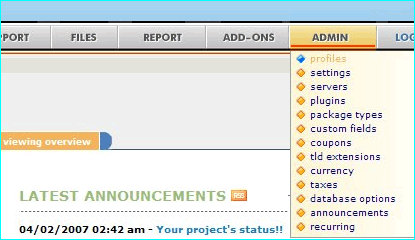
Now click on the ADMIN pull down menu and select plugins.
- Now click on the 3rd party billing
link if you are not already there.
(Your current link will be highlighted in orange.)

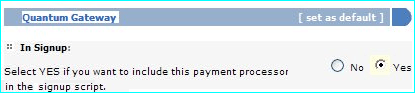
- Next scroll down till you see the Quantum
Gateway option.
Put a dot in Yes and your configuration options will appear.
- First Item To Configure:

Otherwise known as Card Authenticate. By using this option you help in liminating fraud.
By default ALL Quantum Gateway account are setup to use this feature.
Read More
- Second Item To Configure:

By using this option your customers will be called during their checkout asking them to input the passcode that was displayed on their order form. If they do not answer the transaction will fail. You are only charged for SUCCESSFULL calls. Call charges vary depending on the gateway plan.
- Third Item To Configure:

Maxmind is another fraud control feature. By comparing the billing information and their current IPaddress/location a fraud score is calculated. With this feature enabled you can configure the gateway to auto decline a transaction if the score is above a certain amount.
- Fourth Item To Configure:

This will be the main gateway login user name that was assigned to you.
- Fifth Item To Configure:

In order to use the Quantum Gateway checkout you must enable and use a RestrictKey. You can configure your key in the Process Config area of our gateway.
- Sixth Item To Configure:
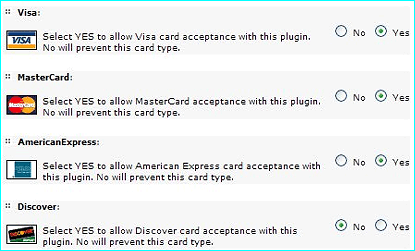
By default almost every merchant account has Visa and MasterCard setup. Please check with your merchant provider if you wish to use American Express or Discover.
- Seventh Item To Configure:

- Eighth Item To Configure:

- Tenth Item To Configure:
Payment From Header
As the area explains you can have a customized message at the top of payment page for your customers to view.
- Eleventh Item To Configure:
Receipt Page Header
As this area explains you can have a customized message at the top of the Payment Receipt page.
- Twelfth(and final) Item To Configure:
Receipt Page Footer
With this you can have a message at the bottom of the Payment Receipt page.Finally click on the Update Settings button down at the bottom of the page.